
PNG to SVG converter
A PNG to SVG conversion is turning pixels into closed vector paths, one layer per color, at the size you choose. It runs in the browser, with nothing uploaded.
The short answer
A PNG to SVG converter traces the edges between the colors in the PNG and writes them as closed paths, one layer per color. The result is vector artwork that scales to any size, instead of a picture stuck at its pixel width.
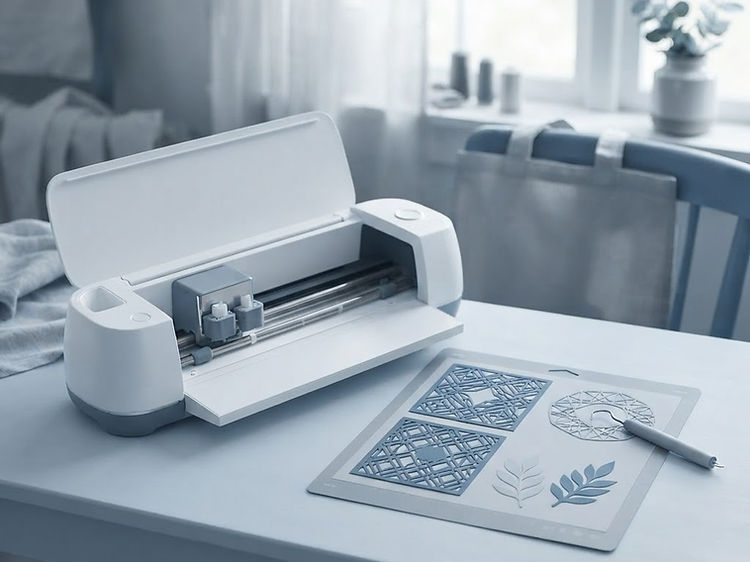
MyImageConvert runs that trace in your browser. Transparent areas are dropped and the width is entered in millimeters. The finished .svg opens straight in Cricut Design Space, Silhouette Studio, Illustrator, Inkscape, LightBurn or a CNC program.
- Output
- One .svg file
- Structure
- A layer per color
- Size
- Millimeters you set
- Free account
- 5 projects a month
Why PNGs trace well
A PNG already knows what is artwork and what is empty.
Four things about the format that decide how clean the SVG comes out.
The transparent area is skipped
A PNG stores which pixels are empty, so only the artwork is traced. No white box is left around the logo and no background has to be deleted afterwards.
Hard edges trace as hard edges
A logo or an icon has clean boundaries between colors, and those boundaries become a closed path you can cut, engrave or plot.
Flat color is what vectors are for
One to six solid colors, lettering, icons and clipart convert with no tidying. Glossy buttons, gradients and drop shadows are where a PNG turns into extra unintended layers.
Bigger PNG, better trace
A PNG carries only the detail it has. Around 1000 pixels across is plenty; far below that, the traced paths follow the pixels instead of the shape.
Steps
PNG in, layered SVG out.
Four steps, no install, nothing to wait for.
Drop the PNG in
The file is read in your browser, so the picture is not uploaded for the conversion.
Set the width in millimeters
Enter the size you actually want to cut, engrave or print. The height follows the PNG’s proportions, so the SVG arrives at a real-world size.
Choose the colors
One layer per sheet of vinyl or per engraving pass. Lower the count to merge near-identical colors, raise it to keep shading.
Download the SVG
One .svg holding closed paths, a layer per color, ready for Design Space, Silhouette Studio, Illustrator, Inkscape or LightBurn.
What you get
One file you can cut, engrave or plot.
What the download actually contains.
Closed paths per color. Every shape is a path a machine can follow, with no stray points and no bitmap left inside the file.
A layer per color. Hide a layer and it is gone from the file; recolor one and only that shape changes. That is what makes a layered cut file stack up in vinyl.
A size in millimeters. The width you set is written into the SVG, so it opens at 80 mm when you asked for 80 mm. It never falls back to an inherited pixel count.
Nothing else. No font, no embedded image, no hidden dependency — which is why the same file works in every program that reads SVG.
Honest limits
Where a traced PNG needs a second look.
All four are visible in the preview before you download.
Gradients turn into bands
A gradient cannot stay smooth as a cut path. It becomes a series of flat steps, so a glossy icon traces busier than a flat one.
Anti-aliased edges add noise
Soft pixels along an edge are read as their own faint color. If a trace looks speckled around the outline, that is the cause, and lowering the color count clears it.
It is not a photo retoucher
A photograph converts to a posterized vector, which suits a stencil far better than a portrait. Clean up the picture in the image editor first when the result matters.
Vector in, no need to convert
If the logo already exists as an SVG, PDF or EPS, use that file. Tracing pixels back to paths always loses a little to the original vectors.
Questions
What people ask before the first trace.
Short answers, in plain words.
How do I convert a PNG to SVG?
Drop the PNG into the SVG studio, set the width you want the file in millimeters, choose how many colors to keep, then download the SVG. The PNG is traced in your browser: each color becomes a closed path, and the transparent area around the artwork is left out, so the file comes back as vector artwork rather than a picture wrapped in a vector box.
Is the SVG a real vector file?
Yes. The download holds paths, not an embedded bitmap, so it scales to any size without losing quality and opens as editable vectors in Cricut Design Space, Silhouette Studio, Illustrator, Inkscape, CorelDRAW, LightBurn and most laser and CNC software.
Does a PNG with a transparent background convert better?
It converts more predictably. A transparent PNG already says which pixels are artwork and which are background, so only the logo or icon is traced. On a PNG with a solid white background, switch on background removal, which drops the background only where it touches the edge so cut-outs inside the artwork stay.
What happens to gradients and soft shadows?
They become flat bands of color, because an SVG cut file is a set of solid shapes. A drop shadow turns into a ring of extra layers, which is why a flat one to six color logo traces far more cleanly than a glossy button or an icon with a gradient.
How many colors can the SVG have?
As many as the artwork needs, and each color becomes its own layer with its own path set. Setting a lower number merges similar colors, which is what you want for a cutter — one layer per sheet of vinyl — and a higher number keeps more detail for printing or engraving.
What size is the SVG?
The size you set. The width is entered in millimeters and the height follows the artwork’s proportions, so the file arrives at a real-world size instead of whatever pixel width the PNG happened to have.
Does a small PNG convert well?
A PNG only carries the detail it has. Roughly 1000 pixels across is enough for a clean trace; well below that, edges turn blocky and the traced paths follow the pixels rather than the shape. Use the largest copy of the artwork you have.
Does converting a PNG to SVG cost anything?
SVG cut files are one of the studios a Free account opens, with 5 projects a month — saves and downloads together — and no card needed. The download is the finished SVG: no watermark and no per-file charge.
Any image, not only a PNG
A JPG, a WebP or a phone photo traces the same way.
The trace runs on all of them; the format only decides how much tidying the result needs.
JPEG and JPG
Photos and screenshots. They arrive with a background baked in and soft edges, so choose a low color count and switch on background removal when the subject sits on white.
PNG
The easiest input: a PNG already marks its empty pixels, so a transparent logo traces down to just the artwork.
WebP
A modern web image, read the same way as a JPG. Save it locally from the browser first, then upload it.
Scans and screenshots
Sharp enough to trace, but a scan brings paper texture and a screenshot brings anti-aliased edges. Raising the color count a little and lowering it again is the fastest way to see which reads cleanest.
A JPEG has no transparent pixels, so its background is traced along with the subject. Removing the background first is the difference between a clean cut file and a rectangle with a logo inside it.
Getting it right
Three settings decide how the SVG looks.
Everything else on the page is a detail.
Color count is the quality dial
Fewer colors make bolder, cleaner shapes; more colors keep shading and detail but add layers to work through. Change it and the preview redraws.
Background removal, not background tracing
It drops the background only where it meets the edge of the picture, so cut-outs inside the artwork — the hole in an O, the gap in a handle — stay open.
Width before anything else
Set the size you actually need. A file traced for 200 mm and then shrunk on the machine ends up with lines thinner than the blade or the bit can follow.
Honest limits
What a traced photo can and cannot be.
Worth knowing before you plan a project around it.
A photo becomes flat color
Tracing cannot keep a smooth gradient. Tone turns into bands, which is exactly right for a stencil or an engraving and wrong for a framed print.
It is not a redraw
The trace follows what is in the picture, including the noise. A clean original beats any amount of adjusting afterwards.
Very fine detail has a floor
At the size you cut, a shape narrower than the blade or the bit can follow will break or burn away. Simplify the artwork rather than shrinking it.
Already-vector art needs no conversion
An SVG, PDF or EPS logo is already paths. Use it directly and the result is exact.
Questions
What people ask before converting an image.
Short answers, in plain words.
How do I convert an image to SVG?
Upload the image to the SVG studio, set the finished width in millimeters and the number of colors, then download the SVG. The image is traced on your device into closed paths, one layer per color, and you get vector artwork that opens in Cricut Design Space, Silhouette Studio, Illustrator, Inkscape, LightBurn or any CNC program.
Which image types can I convert?
PNG, JPEG and WebP — the formats a phone, a camera or a download folder produces. Vector files such as SVG and PDF do not need converting, and very old or unusual formats are best opened and re-saved as PNG first.
What is the difference between a JPG and an SVG?
A JPG is a grid of colored pixels fixed at one size; enlarging it shows blocks and blur. An SVG is a set of paths with coordinates, so it stays sharp at any size, takes a fraction of the file size for flat artwork, and can be cut, engraved or plotted because a machine can follow its lines.
Will a photo convert into a good SVG?
A photo becomes a posterized vector: the number of colors you choose decides how much detail survives. It suits a poster, a stencil or an engraving with a few tone bands far better than a portrait with soft skin tones, which needs hand work afterwards.
How many colors should I choose?
One color per sheet, paint or pass you want to use. Two to six colors covers most logos and lettering; raising the count keeps more shading and lowers it gives cleaner, bolder shapes. Each color is a separate layer you can recolor or hide before you download.
Does the SVG keep my image’s background?
Only if you want it. Background removal drops the background where it meets the edge of the artwork, so a photo of a logo on a page traces just the logo and cut-outs inside it stay intact.
What can I do with the SVG once I have it?
Cut it on a Cricut, Silhouette or Cameo, engrave or cut it on a laser, machine it on a CNC router, send it to a vinyl plotter, or hand it to a printer. The same file works at any size, from a 20 mm decal to a wall-sized sign.
Is the conversion done on my computer or on a server?
On your device. The image is read, traced and colored in the browser, so the picture is not uploaded for the conversion. Only a design you choose to save goes to your library, stored privately in your account.
Which page do I need
The converter for the file you want out.
Pick by what the machine reads, not by what the picture is.
- PNG to SVGA PNG logo or flat artwork into a layered cut file for a Cricut, a Silhouette or a laser.
- Convert image to SVGA JPG, a WebP, a screenshot or a photo into vector paths, with background removal.
- PNG to DSTA PNG straight into a stitch file, when the machine on the bench is an embroidery one.
- Image to embroidery fileAny picture to DST, PES, JEC, JEF, EXP or VP3, and why a PNG cannot be one on its own.
- Image to STLA picture, a sketch or lettering into a printable 3D model.
- Image to CNCA picture into toolpaths and G-code, with the bit and the pass depth set.
- Vector toolsAn SVG or DXF you already have: read it, weld shapes together or knife them apart.